Gadget Tips That Will Make You Feel Like A Wizard

Jenny Chang / BuzzFeed
Many incredible features are already built into your Mac, iPhone, Android device, or PC. They’re hiding behind keyboard shortcuts, gestures, your power adapter’s cable arms… and the best ones are below.

1. There’s a hidden menu that lets you type emoji on a desktop computer.

Nicole Nguyen / BuzzFeed
So you can use emojis in email, on Twitter, in documents, or wherever you please. 
For Mac:
Type emoji by pressing control + command + spacebar to get the menu shown above. Note: You need Mac OS X 10.9 or later.
Type emoji by pressing control + command + spacebar to get the menu shown above. Note: You need Mac OS X 10.9 or later.
For PC:
Windows 7 users can copy and paste emoji from getemoji.com, while Windows 8.1 and 10 users can just select Touch Keyboard, then the smiley face on the bottom left.
Windows 7 users can copy and paste emoji from getemoji.com, while Windows 8.1 and 10 users can just select Touch Keyboard, then the smiley face on the bottom left.
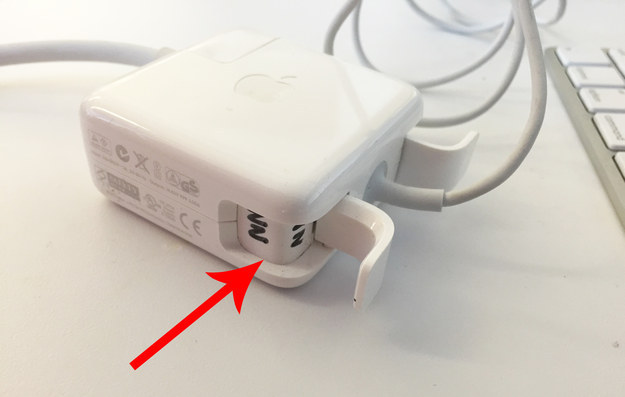
2. The space underneath your charger’s cable arms is the safest place to label it.
Nicole Nguyen / BuzzFeed
Finally convince your roommate that it’s actually *your* adapter! Writing underneath the cable arm is ideal because it won’t rub off with everyday use or leave behind the sticky residue that stickers do.
3. Use command (⌘) + space to perform quick calculations in Spotlight search.

Nicole Nguyen / BuzzFeed
Great for calculating rent or other expenses. You can also highlight the answer to copy it to your clipboard.
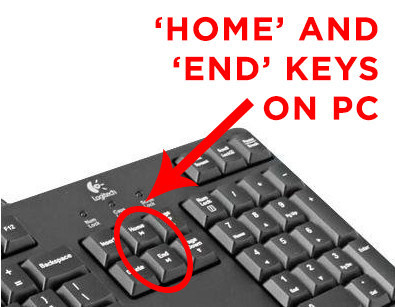
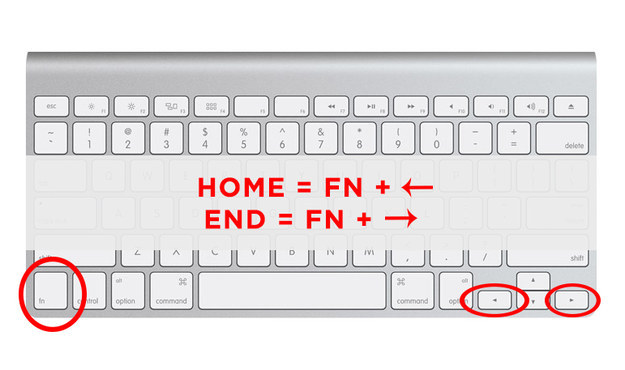
4. The Mac equivalent of the “Home” and “End” keys are fn + left and right arrow, respectively.
Nicole Nguyen / BuzzFeed / Via amazon.com
The Home and End keys come standard with most PC keyboards, but are missing on new Mac keyboards. These keys take you to the top of any page (home) or to the bottom (end). It comes in handy more than you think!
Nicole Nguyen / BuzzFeed / Via apple.com
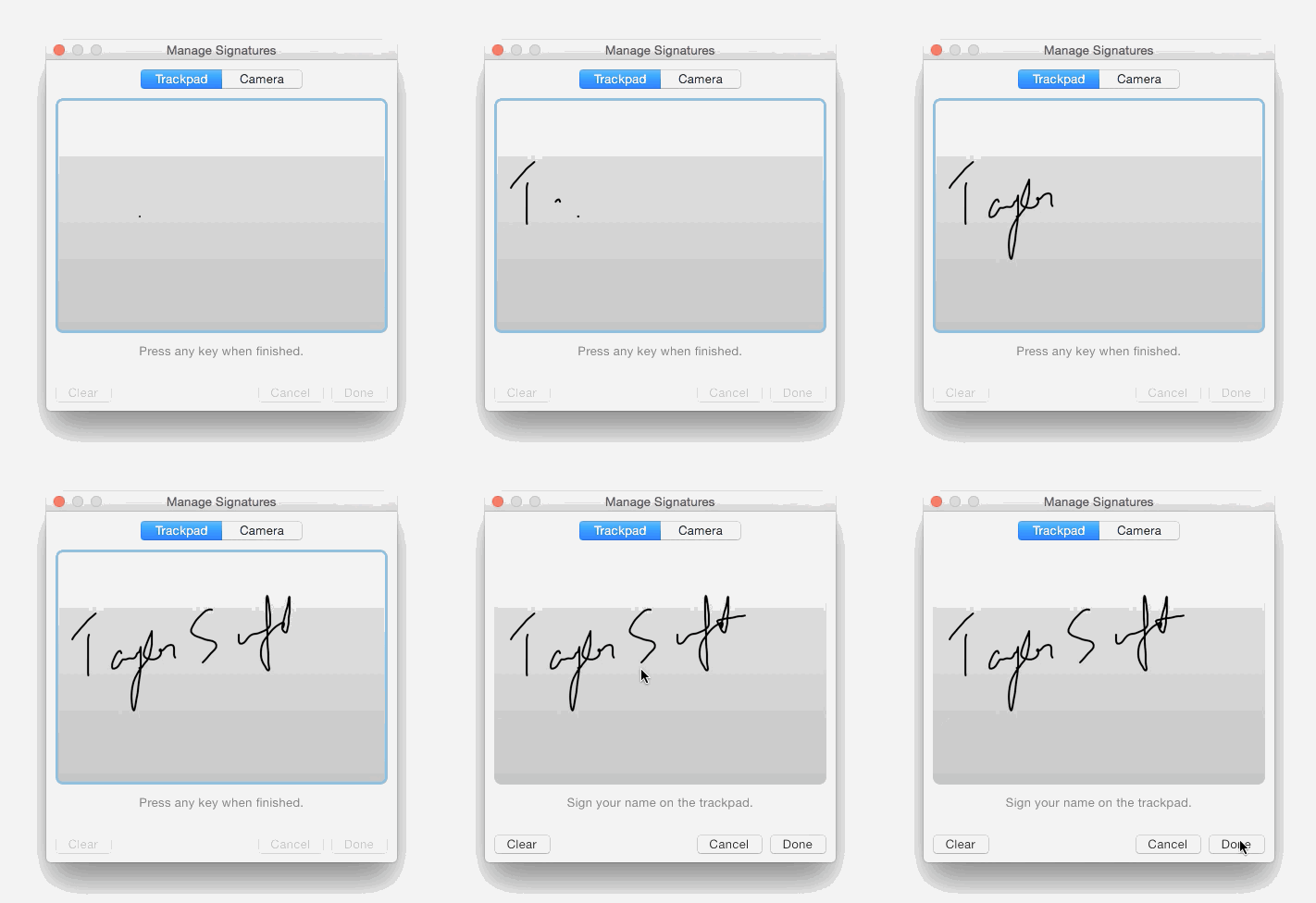
5. Received a document in need of your initials or signature? Just open the “Preview” app.
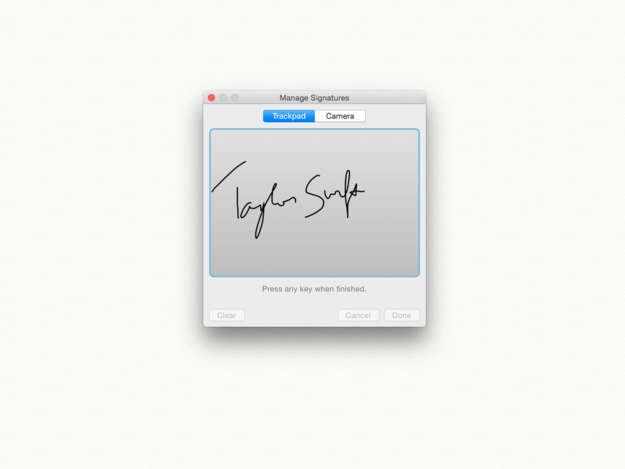
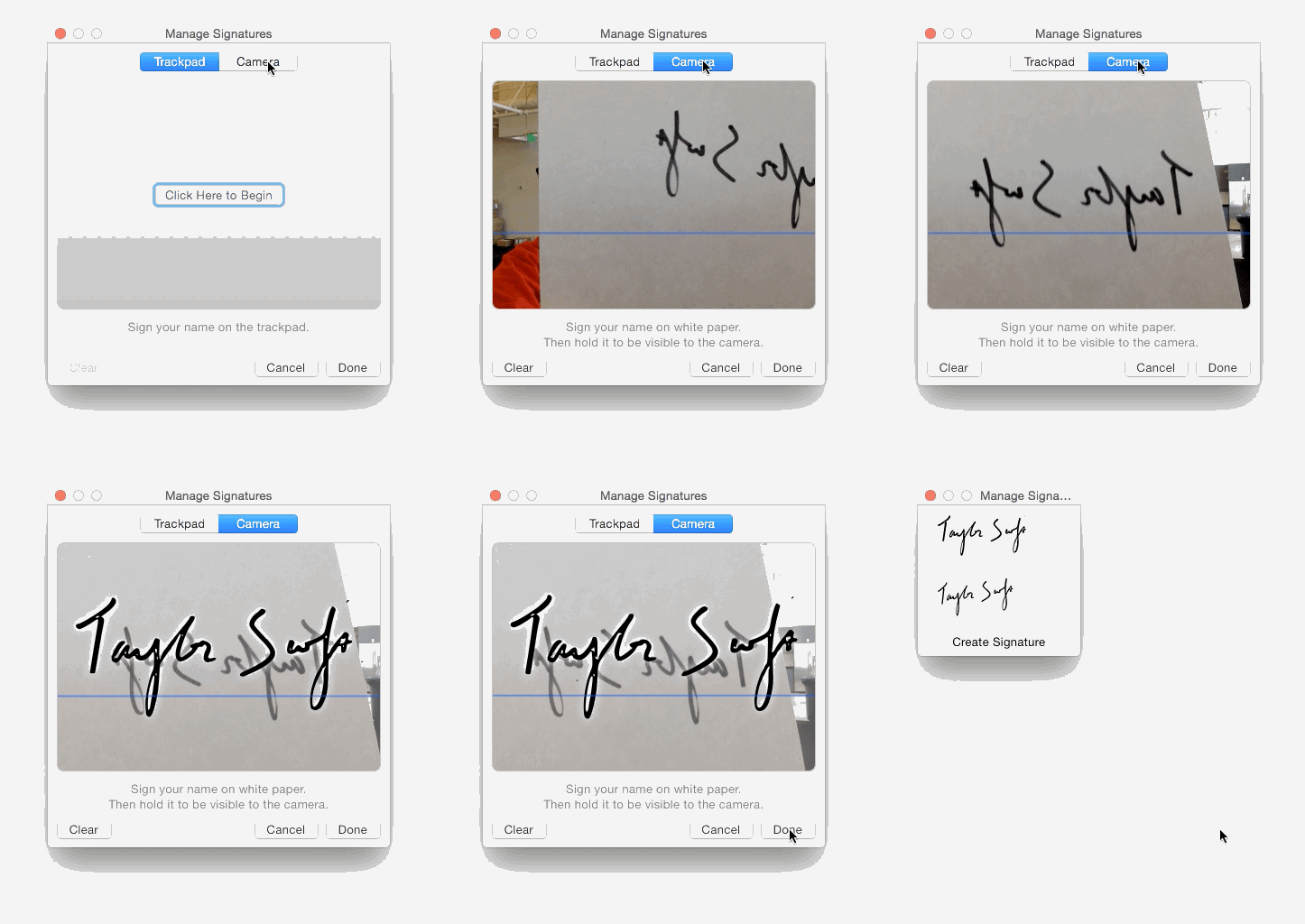
Preview is one of the most underrated Mac apps of all time. The app can add your signature to any document.
Nicole Nguyen / BuzzFeed
Nicole Nguyen / BuzzFeed
Here’s how it’s done: Open Preview and click on Tools in the menu bar > Annotate >Manage signatures > Create signature. You’ll then be prompted to sign using your trackpad or by holding up your signature on a white paper to your laptop’s camera. When you’re finished, click Done.
Next, open your document in Preview. Then go to Tools > Annotate > select the signature you want to use. You can then drag and drop the signature to anywhere on the document.
6. If you hate how slow iPhoto is, use Image Capture to upload pictures instead.

Nicole Nguyen / BuzzFeed
For many Mac users, iPhoto is the culprit behind major computer lag. If you edit an image, iPhoto will create a duplicate — the original version of your pictures — and, over time, those duplicates add up, slowing down your machine along the way.
If you just want to upload photos from an iPhone or camera, then Image Capture will do the job in half the time. You can’t edit them, but you can do everything else. Preview your images, select the ones you want uploaded, choose the folder in which to upload them, and it’s done.
You can also delete the photos from your device through Image Capture. It’s the best way to remove your phone’s Camera Roll pictures en masse.

7. Here’s how to play music and videos streamed from Safari in the background.

Nicole Nguyen / BuzzFeed

Nicole Nguyen / BuzzFeed
You can stream music from sites like YouTube or Soundcloud in the background while using other apps.
How to do it: Press play on the song or video, then navigate back to the homescreen. Swipe up from the bottom to expand Control Center and press play. Voila!
8. While you’re running, skip a song without touching your phone.

Nicole Nguyen / BuzzFeed
Apple’s earbuds have hidden features. Click the middle button twice quickly to skip to the next track and three times quickly for the previous track. It works for streaming music and podcast apps, too.
9. You can also reject a call by pressing and holding the middle button for 2 seconds.

Nicole Nguyen / BuzzFeed
Because it’s so annoying when people call while you’re exercising.
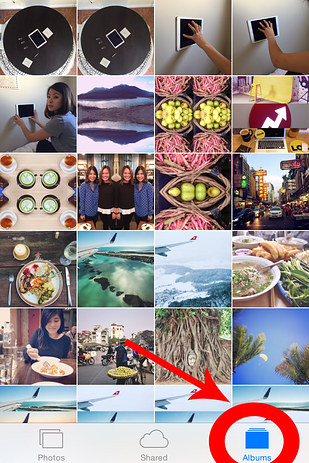
10. In iOS Photos, quickly jump to the *bottom* of an album by tapping on these icons.
Nicole Nguyen / BuzzFeed
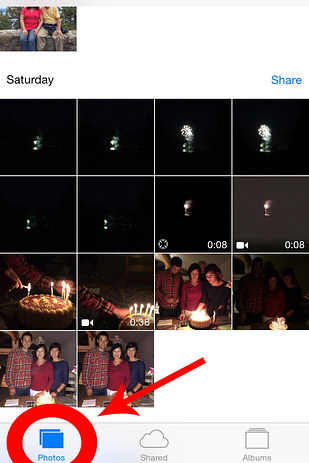
Hoarding 1,000-plus photos on your phone? Then you know the agony of sliding your thumb a million times to scroll through an entire photo album. Here’s how to jump quickly to the bottom:
You may already know that tapping the top bar in any app is a shortcut to the top. Did you know that tapping “Albums” is a shortcut to the bottom (your most recent photo)? In the Moments album, the “Photos” icon will do the same thing.
11. Close up to three apps at once.

Nicole Nguyen / BuzzFeed
Double-tap the home button to see all of the apps currently running on your phone. Here, you can close apps by swiping up. You can actually use three fingers to swipe up on three apps at once. Try it!

12. Missing something? Just Google “find my phone.”

Nicole Nguyen / BuzzFeed
The results will show you where it is on a map. If you still can’t locate the device, clickRing. You’ll need to be logged in to Google on the web for this to work.
13. You don’t need to open your notification shade to check the date. Simply tap and hold the status bar.

Nicole Nguyen / BuzzFeed
Is it Friday yet? One tap to check!
14. Connecting your Android phone to a TV is *super* easy. All you need is one dongle.

Newer phones come with an HDMI port built-in. If you have a male-to-male HDMI cable, these phones are ready to be plugged into a big display.
For not-so-new phones, purchase an MHL adapter (between $10 and $20) on Amazon like the one pictured here.
15. Simply long press this icon to manually disable the automatic unlock feature in Android 5.0.
Via plus.google.com
Devices with Android 5.0 (Lollipop) or higher have a new feature called Smart Lockthat, if enabled, automatically unlocks your phone if it’s near a trusted Bluetooth device (like a smartwatch), in a trusted place (like home), or when it detects that it’s on your body.
But in some instances, like when you’re around kids, you’ll want to lock up your phone at home. To do that, long press the small lock icon at the bottom of the screen.

16. To minimize all of your windows, shake the active one.
Shake it again to make the minimize windows reappear! You can also press the Windows key + Home to perform the same action.
17. In Windows 7 or later, quickly place two application windows side-by-side.
There are two ways to do it: 1) use the keyboard shortcut Windows key + Left or Right Arrow or 2) drag the title bar of a window to the left or right side of a screen.
In Windows 8, the keyboard shortcut is Windows key + Shift + period (to snap left) or Windows key + period (to snap right).
18. Skip the sign-in page by unchecking one box.
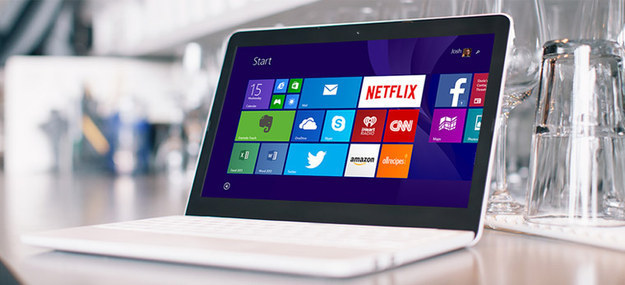
If your device is in a safe space, open the Charms menu (Windows key +C), select search, and type “netplwiz” (no, that’s not a typo), the press Enter for the first search result. Select your account and uncheck Users must enter a username and password to use this computer.
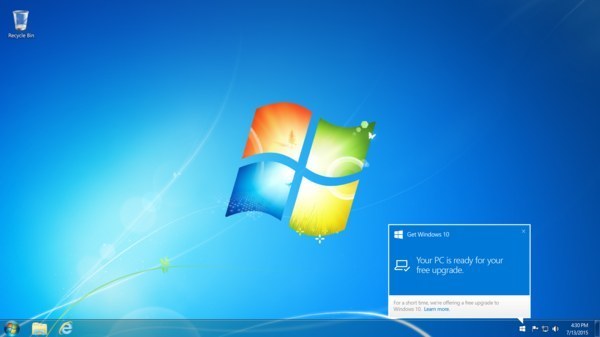
19. Not a fan of the new tiles? Go straight to desktop by selecting this setting.
Via plus.google.com
Right-click on the toolbar, select Properties > Navigation > check When you sign in or close all apps on a screen, go to the desktop instead of Start and it’ll feel like an old PC again!

No comments:
Post a Comment
Please Share and Like Ask Anything You Want..!!